 Checknaut
Diagnose a failed connection or write
Get evidence from your installation before guessing at a fix.
What to expect
- Check the configured endpoint, authentication, builder, licence and available tools. Connection checks need Checknaut Pro.
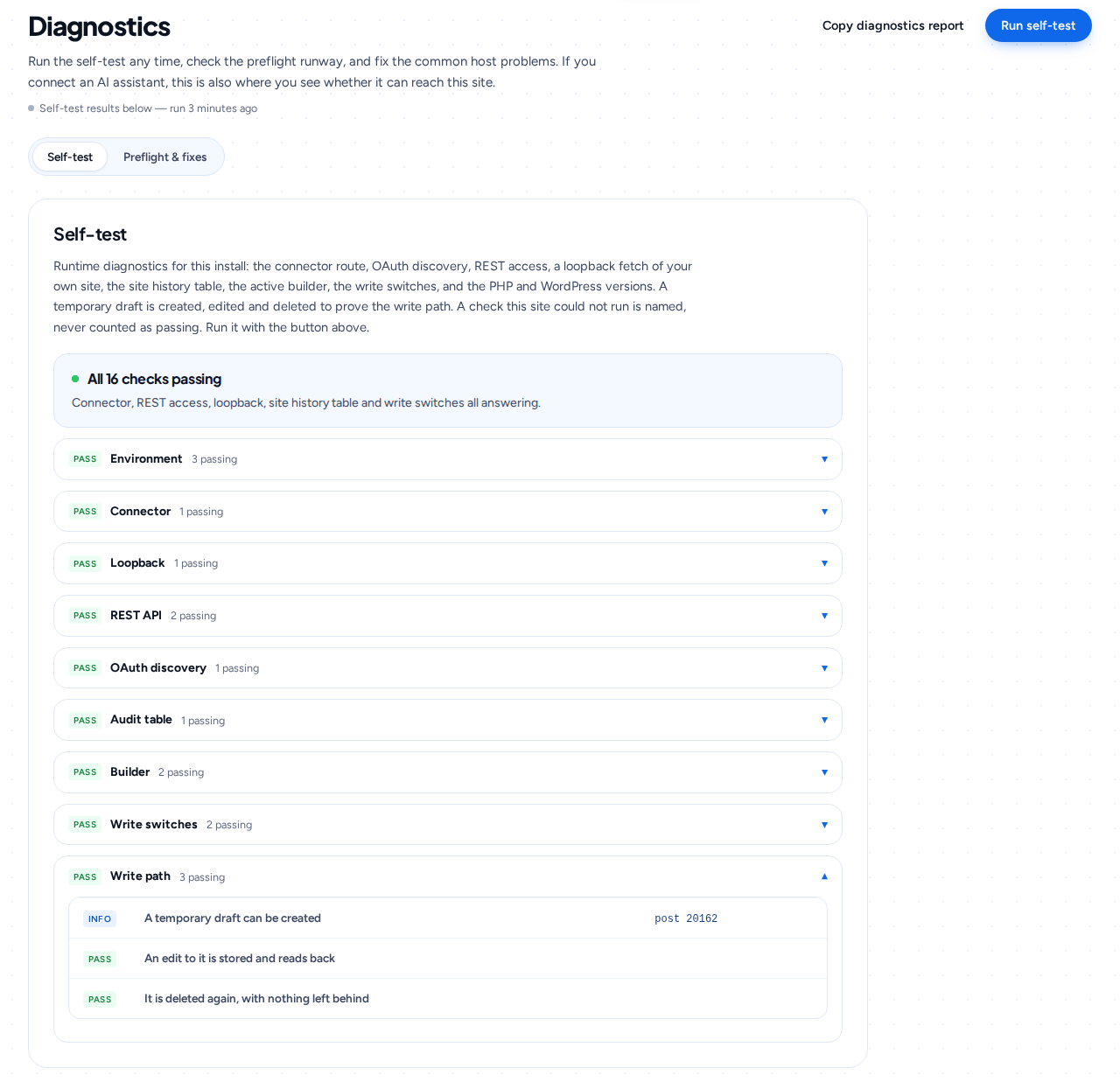
- Run the connection test or self-test and read any failures or unchecked results.
- A successful stored write does not prove a visitor-facing page works. Inspect the served page and, when possible, test it in a browser.
Common questions
My assistant cannot connect. What should I check first?
The configured endpoint, authentication, the page builder, the licence and the tools that are available. Connection checks need Checknaut Pro.
Where is the self-test?
In wp-admin under Checknaut, Tools, Diagnostics. Run it and read any failures or checks it could not run.
A write succeeded but the page looks wrong. Why?
A stored change is not always what visitors see. Page caches and compiled builder CSS can serve an older copy. Clear them, then look at the served page in a browser.
Do I need Pro for diagnostics?
Connection checks need Checknaut Pro. The self-test and the audits are in the free plugin.
What does the self-test check?
It checks that Checknaut works on your own install and names anything it could not check, instead of passing it. Run it after moving hosts, changing the PHP version or adding a security plugin, because those are the changes most likely to block a check. Read any failures and any checks it could not run before you rely on the result, and send the result to support if a failure is not clear.
Start with your own site
Install the free plugin, run an audit and review the results. Page building, bulk workflows, schedules and branded reports need Checknaut Pro. Pro covers one site; Agency covers up to 10 sites. Both include the Builder Pack and Privacy Pack.